RadarBug
Mobile Apps
Use RadarBug on your phone or configure a tablet as a dedicated weather display. Mobile availability and features vary by platform.
Most people start with RadarBug in a browser, but the map is built to work just as well as a always-visible display: on a phone you pull out to check before heading outside, or on a spare tablet mounted in a kitchen, garage, or entryway that stays on a storm view around the clock. Both setups use the same underlying map and data — the difference is just how you keep it in view.
Android
Scan the QR code with your Android device to open the current RadarBug Android destination.
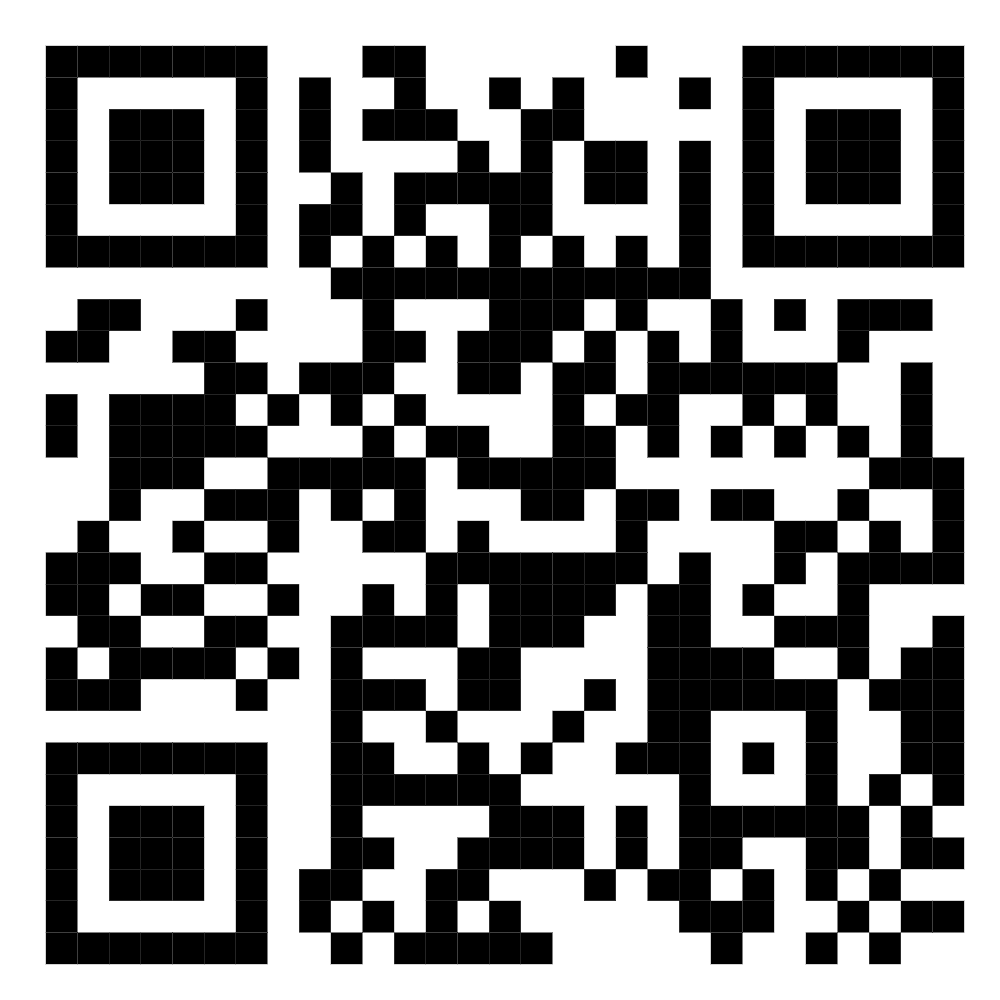
- Interactive radar and storm-awareness map
- Location-based weather information
- Weather alerts and alert notifications in the app
- Saved home location and display preferences
On Android, RadarBug can also run as a dedicated tablet display: an older or spare Android tablet mounted on a wall or counter, kept awake, and pointed at your saved home location, so severe weather is visible the moment you walk by. The Android tablet setup guide below covers keeping the screen awake, dimming it at night, and hiding navigation controls so the map fills the screen.
Apple
The Apple mobile app link and QR code are not yet available. The RadarBug website can still be used in Safari on a supported iPhone or iPad.
coming soon
Until a dedicated Apple app ships, an iPad can already serve as a wall-mounted or countertop weather display by opening RadarBug in Safari and adding it to the Home Screen, which hides the browser chrome and lets the map run full-screen. The iPad setup guide covers Guided Access, screen brightness, and keeping an iPad running as a dedicated display without it sleeping mid-storm.
Choosing Phone, Tablet, or Dedicated Display
A phone is the simplest way to check RadarBug on the go, since it's already in your pocket and needs no setup beyond opening the site or app. A tablet strikes a middle ground: portable enough to carry between rooms, but large enough to read radar detail and alert text from across a room. A dedicated, always-on display — a tablet mounted near an entryway, kitchen, or garage — is the best fit for households that want ambient storm awareness without having to remember to open an app, especially during severe weather season when conditions can change in minutes.
Whichever device you use, saved preferences (home location, active layers, radar look-back, and map style) carry over each time you reopen RadarBug on that device, so a dedicated display only needs to be configured once.
Safety Reminder
RadarBug is a situational-awareness tool. Always follow official forecasts, emergency alerts, evacuation orders, and instructions from local authorities. See the About page for data sources and limitations. Mobile and tablet displays are convenient for keeping an eye on conditions, but they should never replace a NOAA weather radio, a phone with emergency alerts enabled, or official guidance during an active severe weather event, since an internet or power outage can take a network-dependent display offline exactly when it matters most.
More Ways to Access RadarBug
Besides phones and tablets, RadarBug also runs in any modern desktop browser, which makes it easy to keep a radar tab open alongside other work during an active weather event. See the documentation for a full rundown of map controls, weather layers, and troubleshooting steps that apply across every platform.
Alerts While You're Away
On mobile, RadarBug can raise lightning proximity alerts and weather notifications even when you're not actively looking at the map, using your saved home location as the reference point instead of wherever your device happens to be at the moment. That means a tablet mounted in a garage, or a phone in your pocket, can still flag nearby lightning activity around a fixed location you care about — your house, a job site, or a ballfield — without you needing to keep the app open and watch it continuously.
Notification permission is requested the first time alerts are enabled; if it's declined or later revoked in your device's settings, RadarBug falls back to showing alerts as an on-screen message whenever the app or site is open, so nothing is silently lost — it just requires the page to be visible to notice.
Keeping a Dedicated Display Current
A tablet left running RadarBug for weeks or months at a time benefits from an occasional manual refresh, since browsers can hold onto a cached version of the page longer than expected on some devices. If a dedicated display ever looks like it has stopped updating — the radar loop stalls, or a status count stays fixed for an unusually long time — reloading the page is the first thing to try, followed by checking that Wi-Fi and location permissions are still enabled for that device.